

Introduction
There could be a few reasons your SSA emails aren’t showing up in your Inbox. To fix email delivery issues, we’ll need to check the following:
- Is WordPress sending the emails?
- Are they in Spam, or never delivered?
- Are they sending late?
- Are there any errors in your Message?
- Is the missing email notification one that you recently created?
Is the Customer Notification Configured Correctly?
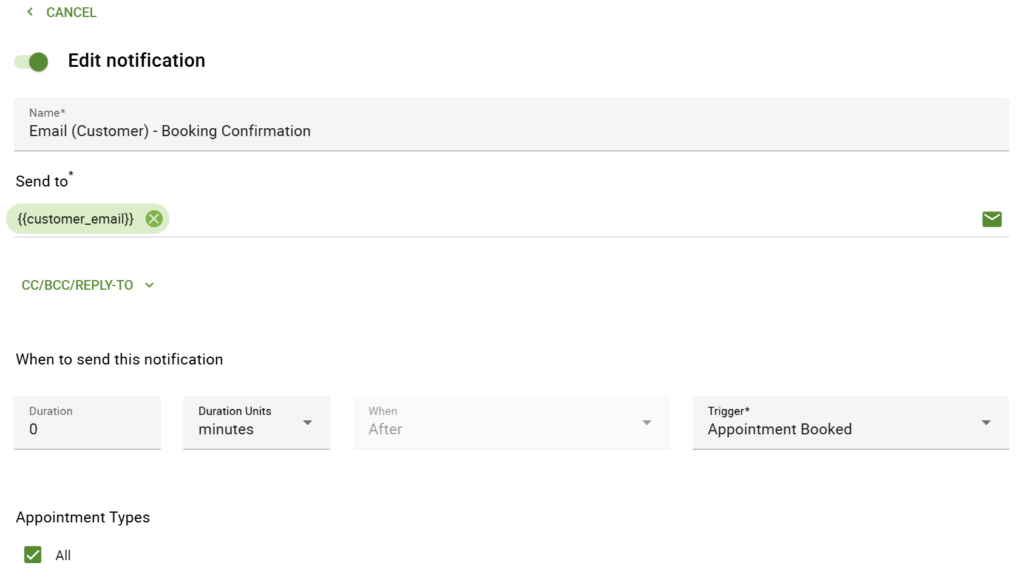
If Admin is receiving notifications but the customers aren’t, go to SSA Settings > Notifications and edit the notification setup for your customer.
Check the Send To field. It should contain the customer email twig as the sender.
{{ customer_email }}This is the variable that pulls in the customer’s email address when they book.
Also check the following:
- The notification Trigger is set to Booked (for booking confirmations)
- The notification is tied to the correct Appointment Type, or set to All.
- The template doesn’t contain any errors.
You can try the same steps for the Admin notification if the Admin isn’t receiving the booking confirmation email.
If you need to create a customer notification from scratch, the Email Notifications guide covers the full setup.
Is WordPress Sending the Emails?
Track emails sent using a free plugin. We recommend using WP Mail Logging.
Once you’ve installed and activated the WP Mail Logging plugin, the plugin will immediately start logging the emails you send. To find the logs, go to your WordPress admin panel, locate WP Mail Logging, and select Email Log.
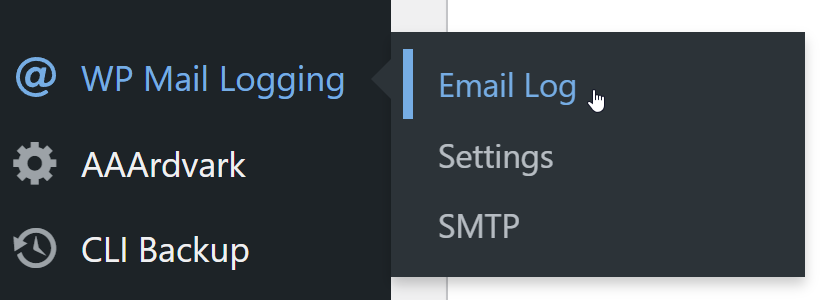
If you don’t see a WP Mail Logging tab on your WordPress left sidebar menu, check for this option under Tools > WP Mail Log.
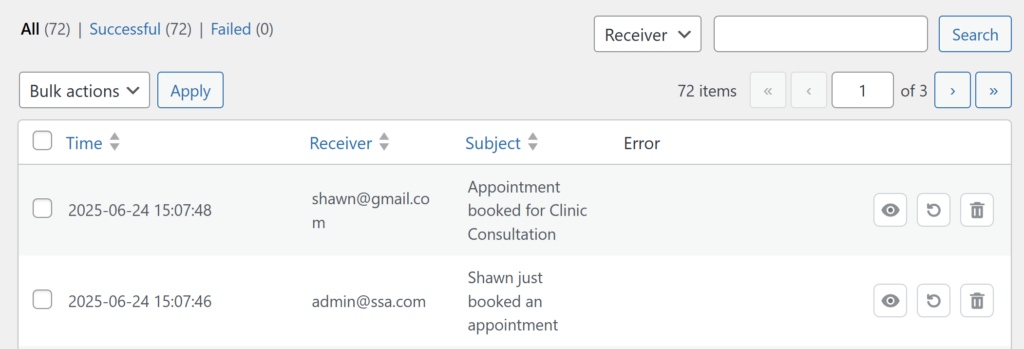
Next, go back to your booking calendar and book a test appointment. You could set the email to send to yourself. Now go back to the WP Mail Log tool.
Check to see whether all the Notification Emails you’re expecting show up.
Emails Going to Your Spam Folder or Not Delivering At All
If your emails are showing as successfully sent in the logs without errors but are still landing in spam folders or not being delivered, we recommend you visit this guide:
Where we explain how SSA sends emails, and we outline tips and suggestions on how to set up a dedicated mailing service – which might be the only option for email delivery issues like these.
Emails Not Sending Out on Time
This might be an issue with WP-Cron, the system that makes sure to send out emails on time.
Please follow the guide here on how to deal with WP-Cron: How to Make Sure Emails are Sent Out on Time.
Are There Any Errors in Your Subject or Message?
Sometimes, an error in your SSA Subject and Message could also cause a delivery issue.
Try following the steps in our Message Error guide to determine if a syntax error causes this and how to fix it.
Is Your Admin Email hosted by Google or G Suite?
There’s a kink in the way that Google and G Suite sort their emails. If you’re using a Google-hosted email and not getting your test emails, it may be because of the glitch.
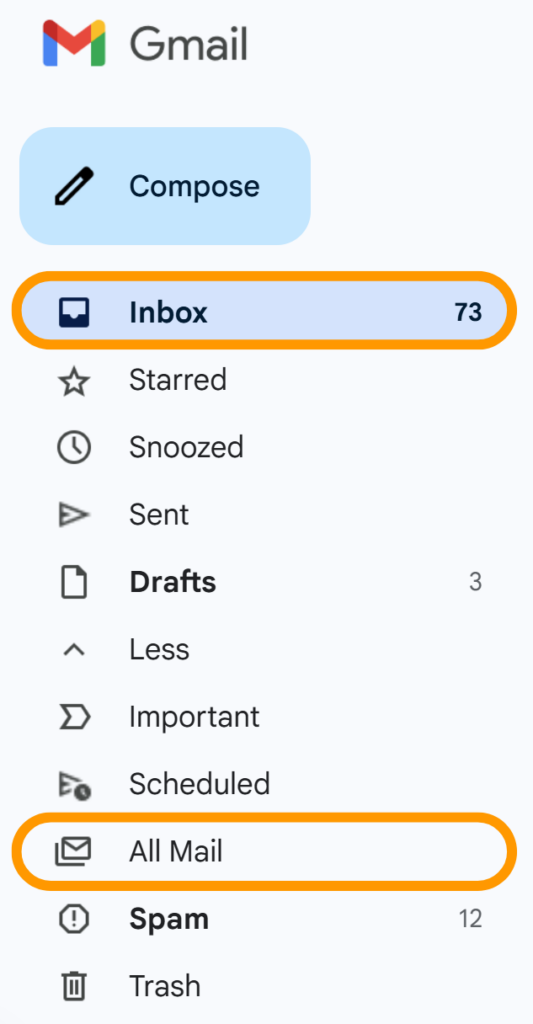
When [email protected] sends an email to [email protected], the message sorts into the “All Mail” folder and not your “Inbox” folder.
Google built it this way because some people BCC themselves on messages and don’t want to see those in their Inbox.
Double-check your “All Mail” folder and see if that’s the case.
When you open your Google Email page, you usually see your Inbox folder. The All Mail folder is often found further down the list of folders (you may have to expand the list to find this folder).
Is the missing email notification one that you recently created?
Newly created notifications will not apply to all of your existing booked appointments. Since notifications are programmed at the time of booking, only appointments made after the creation of the notification will be sent out.
If the above steps don’t help, get in touch with our Support team at [email protected].
Related Guides
-

Email Message Errors
-
Scheduled Event and Cron Errors
-
How to Fix “There Are No Available Appointments”
-
Emails Not Translating