

Introduction
In this guide, we’ll cover the Notification Opt-In setting for Appointment Types. This will allow your clients booking appointments to choose whether they want to receive email and SMS notifications from Simply Schedule Appointments or not.
This is a helpful way to ensure your Appointment Types comply with GDPR.
Default vs. Enabled Behavior
By default, SSA does not require customers to opt in to receive notifications. Customers receive all notifications automatically unless you explicitly enable the Notification Opt-In setting, which then gives them the choice to opt in or out. Here’s a quick comparison table with the Notification Opt-In setting enabled and disabled:
| Notification Opt-In Setting | Customer Experience | Notifications Sent? |
| Disabled (default) | No checkbox shown on the booking calendar | Yes – all notifications sent automatically |
| Enabled | Checkbox shown on the booking calendar to opt in or not | Only if the customer checks the box |
Notification Opt-In Setting
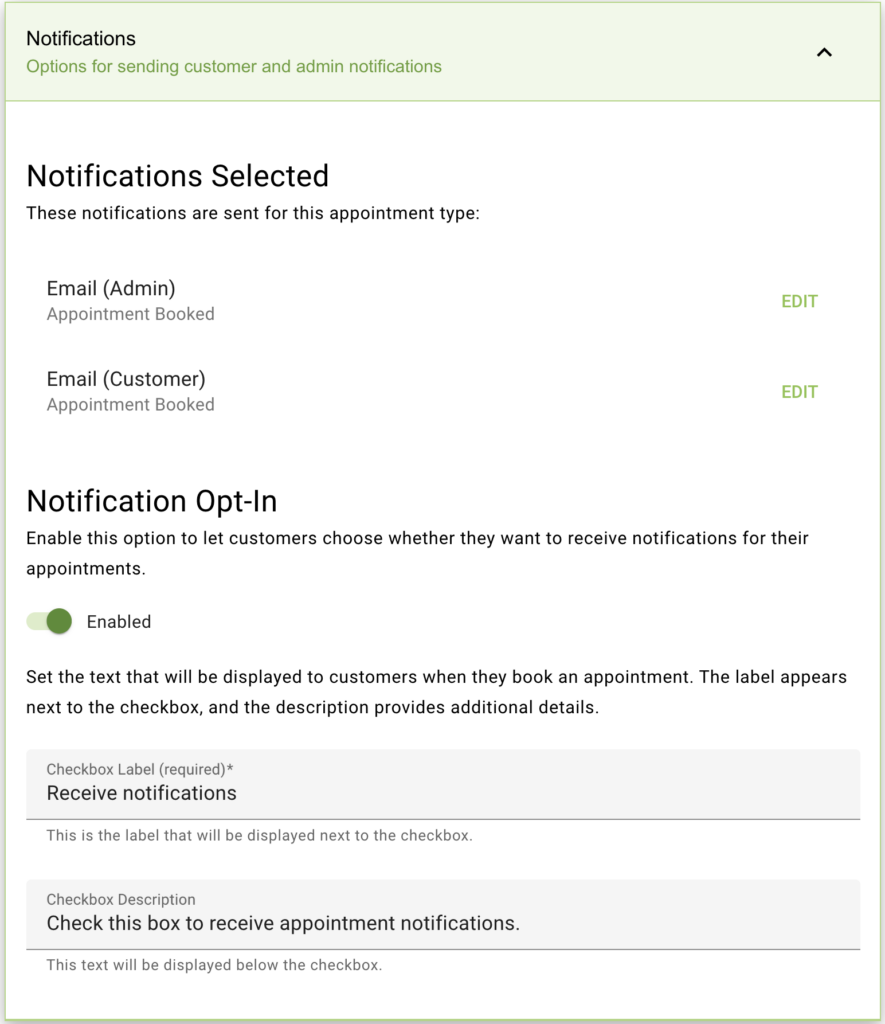
Within each Appointment Type’s Notifications tab, you’ll find the Notification Opt-In settings. From here, you can enable an opt-in checkbox to give your customers the option to accept or decline notifications for their appointment.
Note that the notifications for Admins and Team Members will still work as expected for this appointment type.
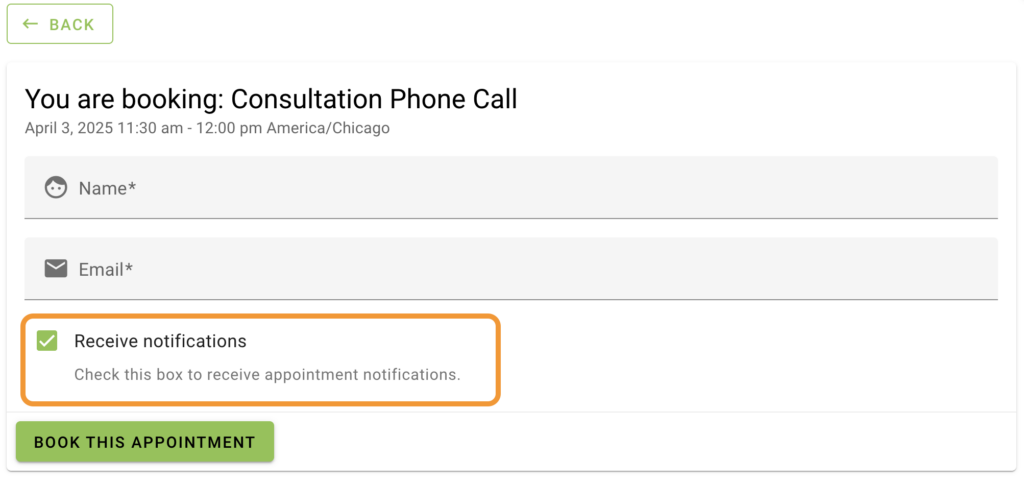
Once enabled, you’ll be shown two text boxes where you can edit the Label and Description that you’d like to show customers on the booking form page.
If customers select the Receive Notifications checkbox before booking their appointment, only then will they receive email and SMS notifications from Simply Schedule Appointments.
Otherwise, if they opt out, they won’t receive any email and SMS notifications from Simply Schedule Appointments you have configured for customers for an appointment type they booked.
Related Guides
-

Email Delivery Issues
-
Scheduled Event and Cron Errors
-
Reschedule/Cancel Link 404 Error
-
Email Message Errors
